Technology

  • How to Create a New Header and Use It Site-Wide in WordPress

    If you’ve ever scratched your head wondering how to update your site’s header once and have it magically reflect across every single page and post, you’re in good company. I’ve been down that rabbit hole too, wrestling with WordPress’s Block Editor, Site Editor, templates, and template parts. In this guide, I’ll walk you through everything—from the basics of Block vs. Site Editor to the nitty-gritty steps of creating a brand new header template part and applying it across your entire site. Plus, I’ll spill why simply creating a template part doesn’t auto-magically roll out everywhere (spoiler: it’s for flexibility!).

    What you’ll get:

    1. A clear understanding of Block Editor vs. Site Editor
    2. Confirmation of when to use each editor
    3. The difference between global structure (styles) and templates
    4. A detailed, step-by-step walkthrough for changing or creating a header template part
    5. Answers to common questions, like why template parts aren’t automatically applied
    6. SEO-optimized headings and keywords to help search engines find this post

    Let’s dive in!


    1. Block Editor vs. Site Editor: Two Different Worlds

    When I first started with Gutenberg, I thought, “This block thing is cool,” but I didn’t fully grasp the bigger picture. The magic of WordPress 5.8+ introduced not just the Block Editor but the Site Editor—and they serve different masters:

    • Block Editor (a.k.a. Gutenberg)
      • Scope: Individual posts and pages
      • Use it for: Creating and editing content blocks like text, images, galleries, and embeds
      • Example: Publishing a new blog post with rich media, formatting, and custom layouts
    • Site Editor (Full Site Editing / FSE)
      • Scope: Your entire website
      • Use it for: Designing templates, template parts (header, footer), and global styles (fonts, colors)
      • Example: Tweaking your header layout, changing the blog archive design, or customizing the footer across all pages

    Why this matters: If you try to edit your header in the Block Editor, you’re only touching one page at a time. To change your site’s global header, you’ll need the Site Editor. Simple as that!


    2. When to Use Block Editor vs. Site Editor

    You asked: “If I want to change templates/patterns, use Site Editor; for changing individual posts/pages, use Block Editor. Correct?”

    Yes—that’s exactly right.

    • Block Editor = Individual Content
      • Think: I want to update my About page text, add an image gallery to this page.
    • Site Editor = Global Structure + Templates
      • Think: I want a new header, update my footer, change how all blog posts look.

    Tip: Ask yourself, “Do I want this change on just this one page, or everywhere?”


    3. Templates vs. Global Structure (Styles): Not the Same Thing

    This one tripped me up more than once. Templates and global styles are siblings, but they play different roles:

    FeatureTemplatesGlobal Structure (Styles)
    DefinitionLayout blueprints for page typesSite-wide design settings (fonts, colors, spacing)
    ScopeSpecific page types (single post, archive, page)Entire site (all templates)
    Edited inSite Editor → TemplatesSite Editor → Styles panel
    ExamplesSingle Post layout, Archive layoutButton styles, Link colors, Typography

    • Templates: Imagine blueprints for each room in a house—kitchen blueprint, bedroom blueprint. If you renovate the kitchen blueprint, all kitchens look new.
    • Global Structure: This is your interior design style—wall paint, baseboard trim, tile choices—applied everywhere.

    Bottom line: When you edit a template, all pages using that template update. When you tweak a global style, fonts, colors, and spacing shift site-wide.


    4. Step-by-Step: Changing the Header Site-Wide

    Ready to create or change your header and have it show up on every page? Here’s the straightforward way:

    1. Open the Site Editor
      • Go to Appearance → Editor in your WordPress dashboard.
    2. Create or Select a Header Template Part
      • Click the WordPress logo (top-left) → Template Parts → Header.
      • To create: Click Add New, name it (e.g., “Custom Header”), choose type Header, and click Create.
      • To use existing: Select the header part you want.
    3. Design Your Header
      • Use blocks: Site Logo, Navigation Menu, Buttons, Social Icons, Search.
      • Adjust spacing, colors, typography in the block settings or Styles panel.
    4. Save Your Header Template Part
      • Click Save. Your header part now exists, but it’s not yet applied to any templates.
    5. Apply the Header to Templates
      • Still in the Site Editor, navigate to Templates (Single Post, Page, Archive, 404, Search, etc.).
      • For each one:
        • Click the template → select the old Header part → delete it.
        • Add a block: Template Part, choose your new header.
        • Click Save.

    Pro Tip: If your theme uses the same header for all templates by default, you might only need to replace it once, and the change ripples across.


    5. Why a New Template Part Doesn’t Auto-Apply

    You might wonder: “Why doesn’t WordPress just swap in my new header everywhere?”

    Here’s the thing:

    • Flexibility Over Automation: WordPress lets each template decide which header it uses. That means you can have different headers: a minimal one for landing pages and a full one for blog posts.
    • Manual Control: By creating template parts and assigning them manually, you get precise control over which templates use which parts.

    It’s a bit more work up front, but it saves you from unintended changes down the road. Imagine if you updated your header for your blog but then accidentally lost the custom header on your sales page—that would be chaos!


    Conclusion

    Changing your WordPress header site-wide doesn’t have to feel like a treasure hunt. With the Site Editor, template parts, and a bit of manual swapping, you can design a beautiful header once and have it show up everywhere. Remember:

    1. Block Editor = posts & pages content.
    2. Site Editor = templates & global styles.
    3. Templates control layout.
    4. Global styles control appearance.
    5. Template parts are reusable blocks—but must be assigned to templates manually.
  • Checkerboard Karel Solution

    Checkerboard Karel Solution

    Stanford offers this really cool free learning platform called Code in Place. I’m currently enrolled in the 2024 class and have finished my week 2.

    There is this Optional problem called Checkerboard Karel, and this is my solution to it. I’m sure there are other ways to solve the problem, and feel free to let me know by commenting down below, or connect with me on Twitter/X.

    The Problem

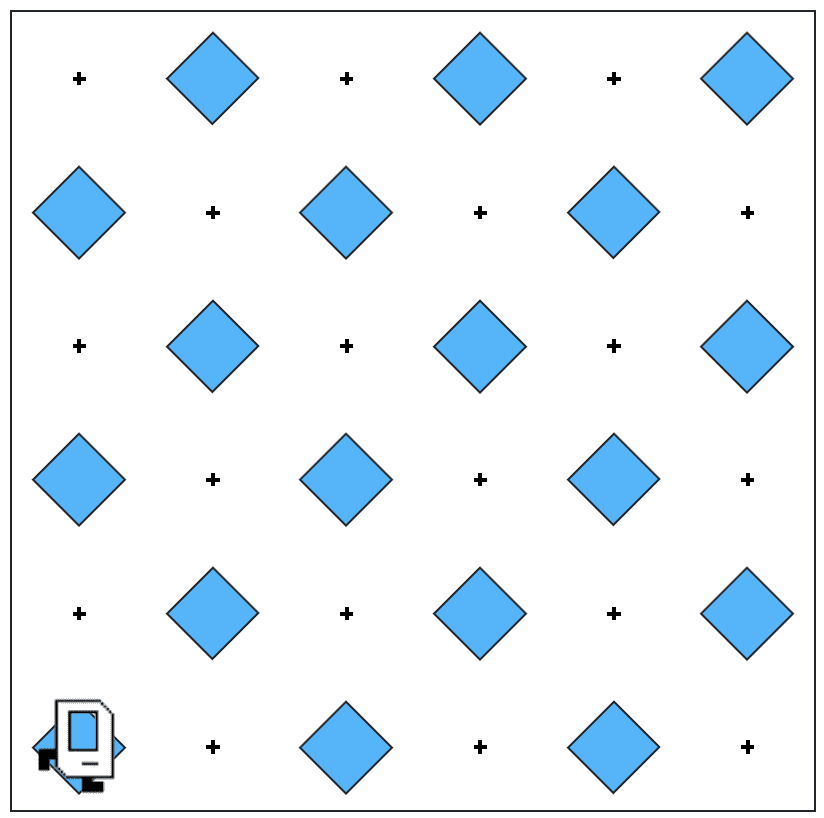
    This problem asks us to get Karel to create a checkerboard pattern of beepers from an empty world to a world like this:

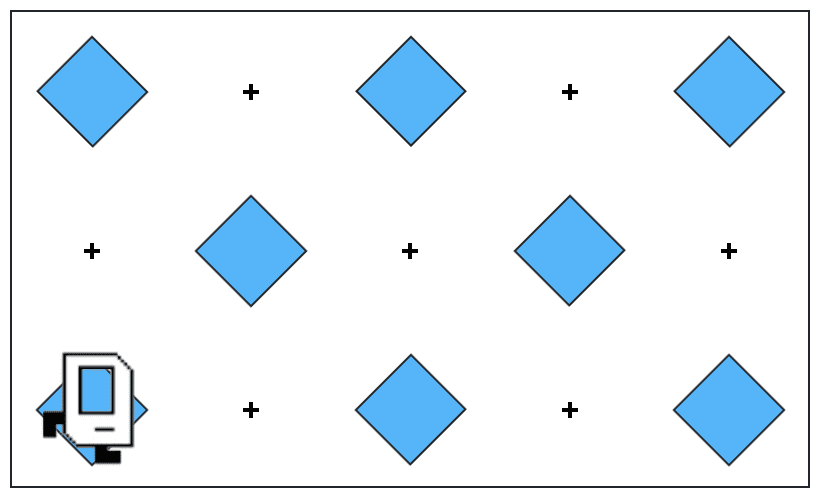
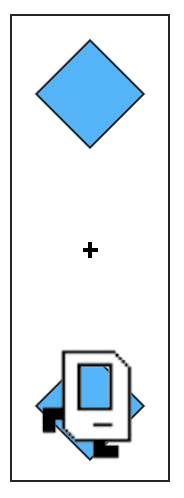
    Karel starts and finishes from the same position. We don’t really know how big the world is, or whether there are odd or even numbers of columns or rows, which means that Karel could be working in a world like this:

    Or this:

    The algorithm

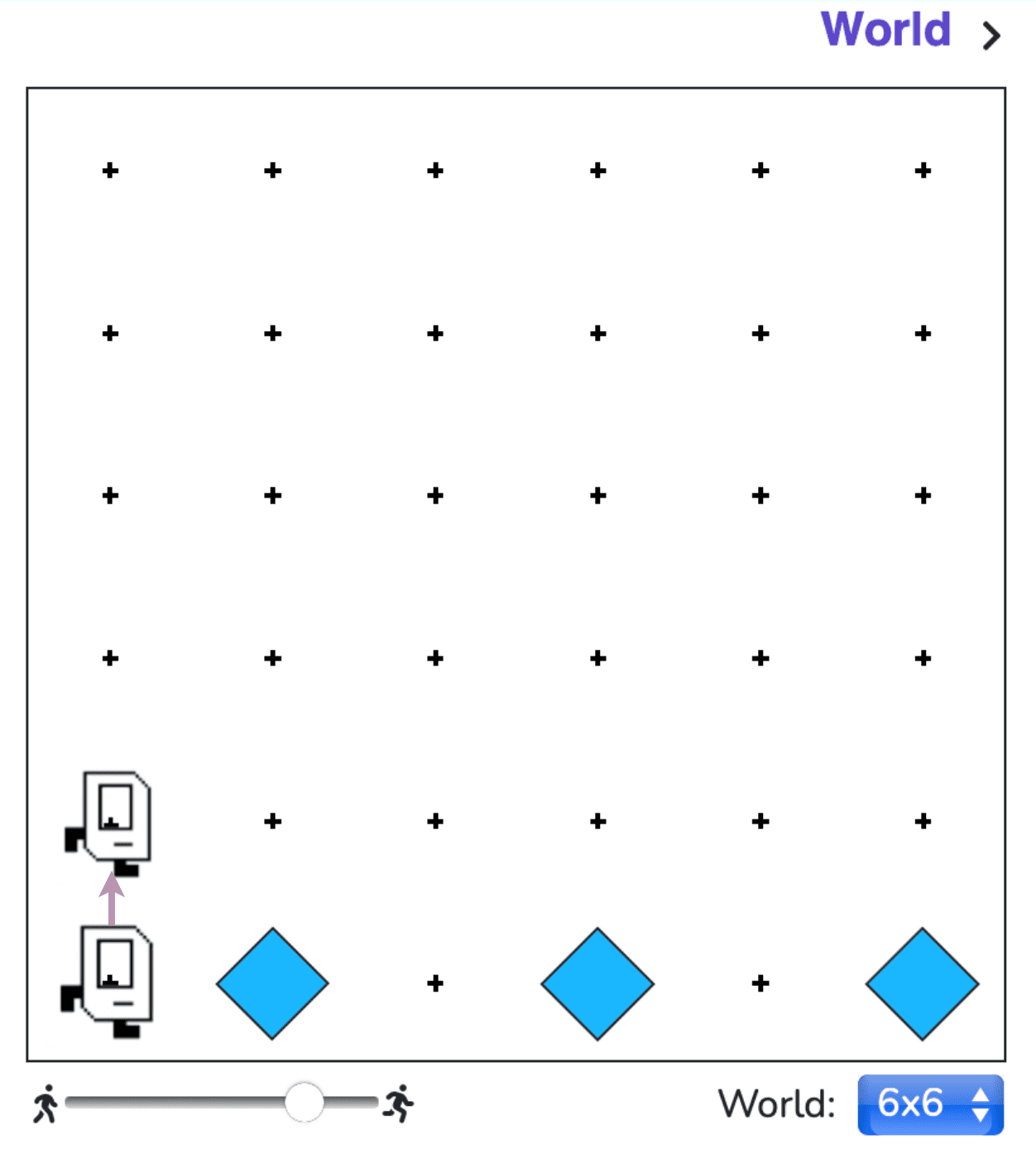
    Step 1: tag all rows in the first column

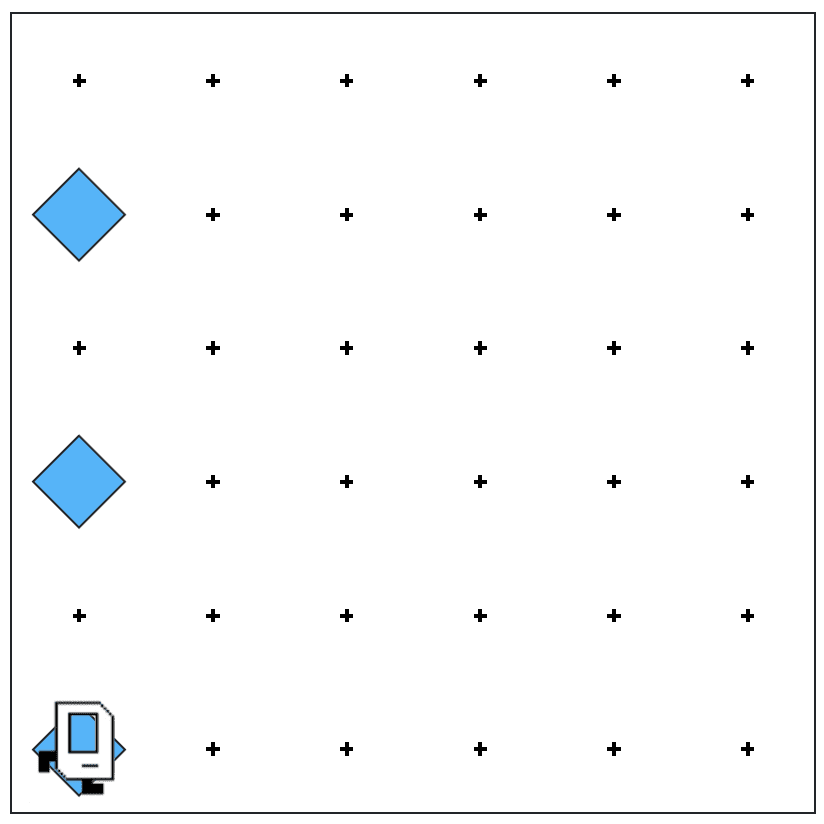
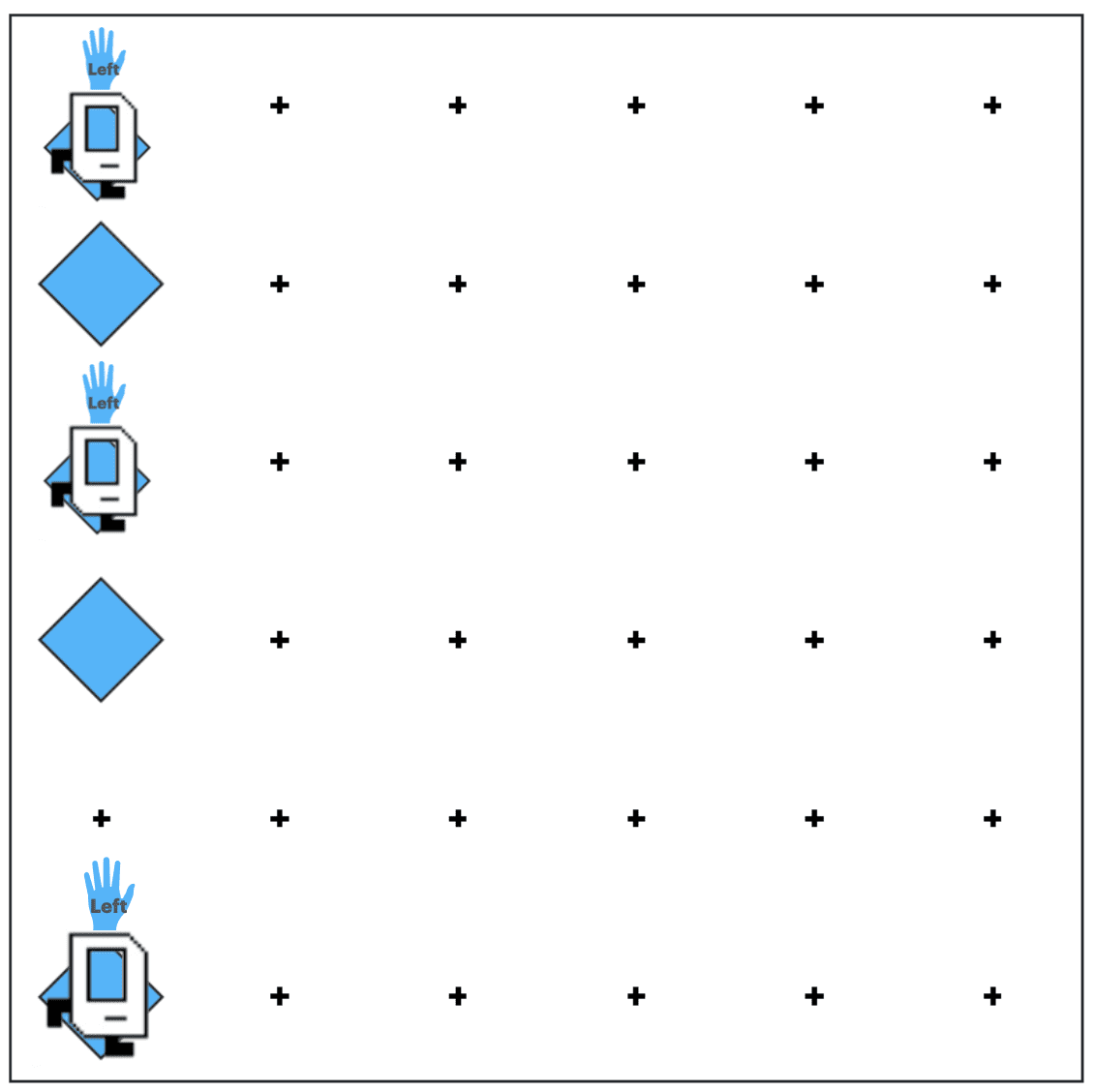
    One of the most important things to solve here is to let Karel know whether she is on an odd or even row, so that she can correctly lay down the beepers according to the pattern rules. There is no rule on where Karel can go, i.e. east, west, north, south, as long as she doesn’t bang her head against the wall. So my first step is to tag all rows in the first column, like this (we will use the 6×6 world as an example):

    In this way Karel can rely on the “if” function to know whether she is on an odd or even row, therefore know how to proceed. 

    A remainder: Karel should return to her original corner after tagging all rows.

    Step 2: tag one row correctly, regardless of odd or even

    This is the core of the solution for Checkerboard Karel. 

    Since we’ve already tagged all rows, an “if/else” function would do the trick:

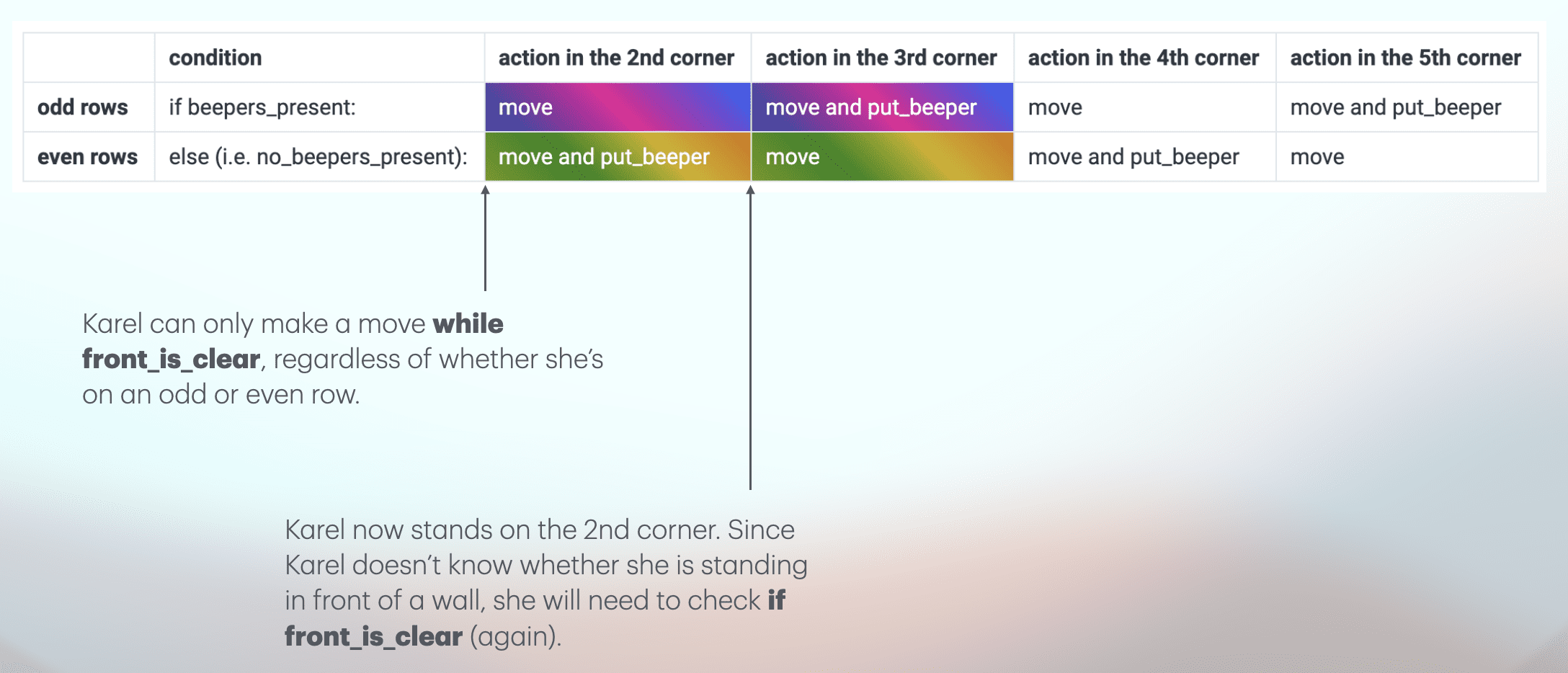
    If Karel is on an odd row, she simply follows a “move – move – put_beeper” pattern until she stops in front of a wall. If she is on an even row, she follows a “move – put_beeper – move” pattern. Simple as that. 

    Yet since we don’t know how big or small the world is, Karel needs to check whether her front_is_clear every time she tries to make a move:

    We should also remember to get Karel return to the first corner once she finishes tagging a single row. In this way, Karel will be in the same condition every time, i.e. standing on the first corner, facing east.

    Step 3: Karel should tag every row in her world, and return to the original corner afterwards

    Because we make Karel return to the first corner on each row after tagging that row, the next step is quite easy:

    1. Turn left
    2. Move one step
    3. Turn right

    Then Karel will be on the next row, standing on the first corner, facing east, ready for action. 

    Except on the last row. 

    After tagging the last row, Karel must return to the original corner by turning right, moving to the wall, and turning left.

    The problem is to find a condition that applies to all rows except the last one, a difference that can help Karel understand when to stop and move to the original corner.

    In this world, the power lies with Karel’s left hand.

    Imagine Karel can reach out with his left hand and touch if there is a wall. For all rows except the last, Karel’s left_is_clear.

    This is the condition we need.

    The code

    This is my version of the solution, and I’m pretty sure there are other and better ways to solve.

    from karel.stanfordkarel import *
    
    """
    Karel should fill the whole world with beepers.
    """
    
    def main():
        """
        You should write your code to make Karel do its task in
        this function. Make sure to delete the 'pass' line before
        starting to write your own code. You should also delete this
        comment and replace it with a better, more descriptive one.
        """
        tag_all_rows() # this refers to Step 1
        tag_row() # this refers to Step 2
        while left_is_clear(): #the rest of this section refers to Step 3
            turn_left()
            move()
            turn_right()
            tag_row()
        turn_right()
        move_to_wall()
        turn_left()
    
    def tag_all_rows():
        turn_left()
        put_beeper()
        while front_is_clear():
            move()
            if front_is_clear():
                move()
                put_beeper()
        turn_around()
        move_to_wall()
        turn_left()
    
    def tag_row():
        if beepers_present():
            while front_is_clear():
                move()
                if front_is_clear():
                    move()
                    put_beeper()
        else:
            while front_is_clear():
                move()
                put_beeper()
                if front_is_clear():
                    move()
        turn_around()
        move_to_wall()
        turn_around()
    
    def turn_around():
        turn_left()
        turn_left()
    
    def turn_right():
        for i in range(3):
            turn_left()
    
    def move_to_wall():
        while front_is_clear():
            move()
    
    # There is no need to edit code beyond this point
    if __name__ == '__main__':
        main()

    Ta-Da!

  • Baby Vocab Solution – Stanford Code in Place

    Baby Vocab Solution – Stanford Code in Place

    The Baby Vocab Problem is essentially asking this:

    We have a list of words, among which some are repetitive. We want to find out the unique words from the list and count the number of each unique word. After that, we will print out the histograms for the words to visualize which words are spoken the most!

    The Code in Place staff has generously provided us with two really useful functions. One is to help us load all the words into a list, and the other is to help us print out histogram bars from two inputs, which are 1) the word, and 2) the word count.

    This problem has provided us with an almost perfect situation to use dictionaries as solution. If we can construct a dictionary where each pair of key and value is a combination of unique words and their respective word counts, we can use the print_histogram_bar(word, count) function to return histograms. 

    First, let’s create an empty dictionary.

        vocab = {}

    Next, let’s go over the whole list of words. For the first time we encounter a word, we will first set the count (or value) of the word (or key) to 1. If the word is already in the vocab (dictionary), we then add 1 to the count. An “if” loop might come in handy here:

     for i in range(len(words)):
            if words[i] not in vocab: # if the word is not in the vocab
                vocab[words[i]] = 1 # set the count for the word to 1
            else:
                vocab[words[i]] += 1 # if the word is already in the vocab, add 1 to the count for this word

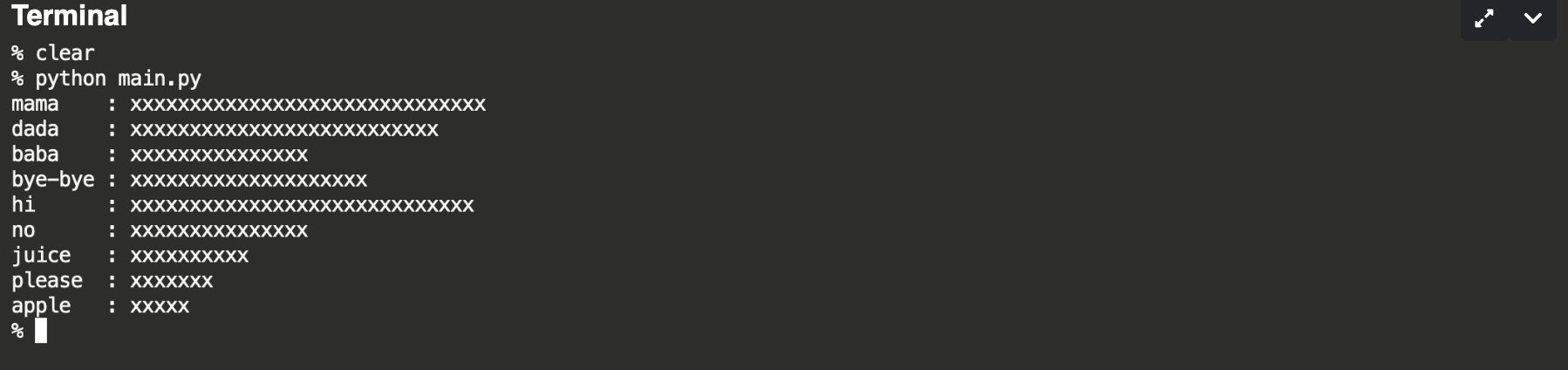
    After that we’ve successfully created a dictionary called vocab containing pairs of unique words and their respective word counts. To test it out, I decided to print out the dictionary to see if it works by adding a print(vocab) line here. The result didn’t disappoint:

    {‘mama’: 30, ‘dada’: 26, ‘baba’: 15, ‘bye-bye’: 20, ‘hi’: 29, ‘no’: 15, ‘juice’: 10, ‘please’: 7, ‘apple’: 5}

    Last but not least, the only thing left is to print out the histograms! 

    for word,count in vocab.items():
            print_histogram_bar(word, count)

    Because the print_histogram_bar(word, count) function requires both the word and the word count, I chose to use vocab.items here as it helps skip the definition of word or count.

    This is the full code, including the pre-programed:

    def main():
        words = load_words_from_file("words.txt")
        vocab = {}
        for i in range(len(words)):
            if words[i] not in vocab: # if the word is not in the vocab
                vocab[words[i]] = 1 # set the count for the word to 1
            else:
                vocab[words[i]] += 1 # if the word is already in the vocab, add 1 to the count for this word
        # print(vocab)
        for word,count in vocab.items():
            print_histogram_bar(word, count)
        
    
    def print_histogram_bar(word, count):
        """
        Prints one bar in the histogram.
        
        Uses formatted strings to do so. The 
            {word : <8}
        adds white space after a string to make
        the string take up 8 total characters of space.
        This makes all of our words on the left of the 
        histogram line up nicely. On the other end,
            {'x' * count}
        takes the 'x' string and duplicates it by 'count'
        number of times. So 'x' * 5 would be 'xxxxx'.
        
        Calling print_histogram_bar("mom", 7) would print:
            mom     : xxxxxxx
        """
        print(f"{word : <8}: {'x' * count}")
    
    def load_words_from_file(filepath):
        """
        Loads words from a file into a list and returns it.
        We assume the file to have one word per line.
        Returns a list of strings. You should not modify this
        function.
        """
        words = []
        with open(filepath, 'r') as file_reader:
            for line in file_reader.readlines():
                cleaned_line = line.strip()
                if cleaned_line != '':
                    words.append(cleaned_line)
        
        return words
    
    
    if __name__ == '__main__':
        main()

    There you have it!

  • Fill Karel Solution

    Fill Karel Solution

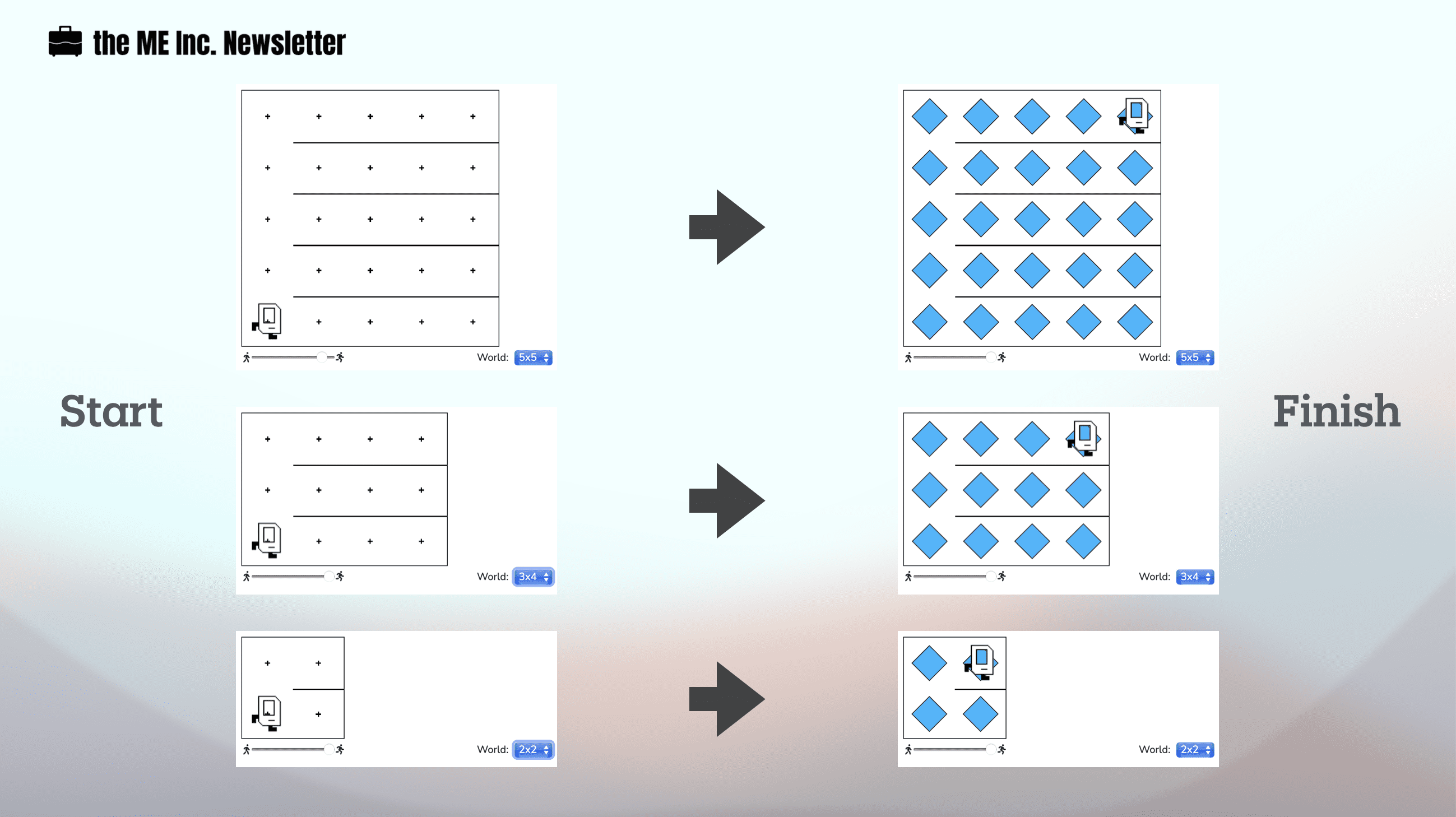
    Karel needs to fill the entire world with beepers regardless of the size of the world. Other than the first column, the rest of the world are segmented by horizontal walls, preventing Karel from getting to the next row above. Our goal is to write code that does the job no matter how large (or small) the world is.

    The problem looks pretty daunting at first. How can Karel know when to put beepers or when to move? 

    Well the solution lies in decomposition. 

    The Thinking Through

    If your dad asks you to lay down the tiles in your porch, how would you do that? 

    You probably would lay one row of tiles at a time. 

    Then you get to the next row and lay down tiles there. So on and so forth.

    Until you get to the last row, lay down the tiles, and stop.

    That is exactly what we are going to do here:

    1. finish one row
    2. move to the next row

    1. Finish One Row

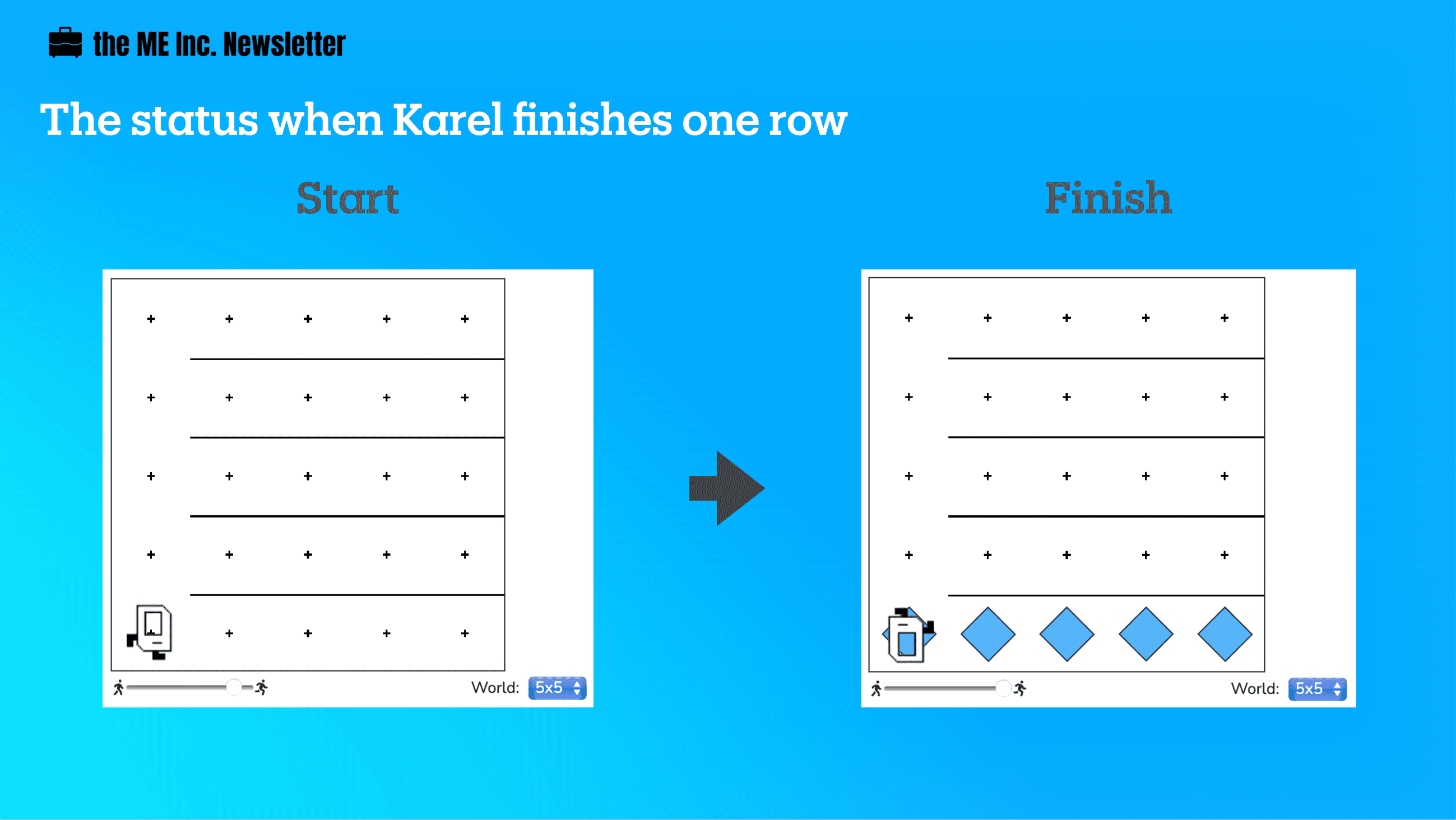
    Karel will have only finished a row when she:

    1. puts beepers on every spot in that row
    2. turns around, and
    3. moves all the way back to the wall

    At this point, Karel will be facing west, ready to move to the next row.

    2. Move to the Next Row

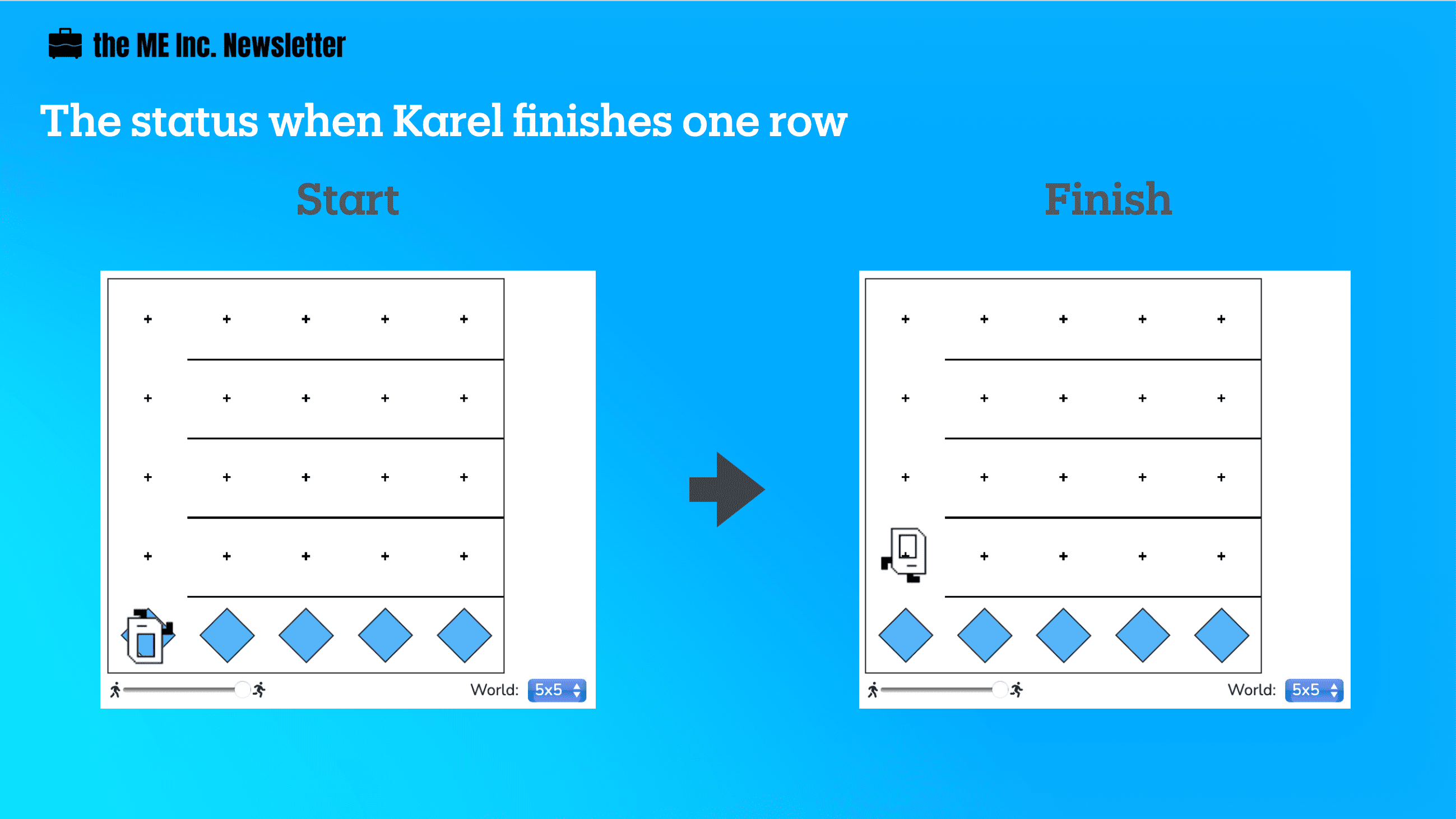
    Once Karel finishes a row, she will be ready to move up to the next row. The steps that Karel needs to follow are pretty simple:

    1. turn right
    2. move
    3. turn right

    At this point, Karel will be, again, facing an empty row, ready to lay down the beepers for that row, so it’s just a matter of repeating the same process.

    But when should Karel stop?

    3. The Condition to Stop

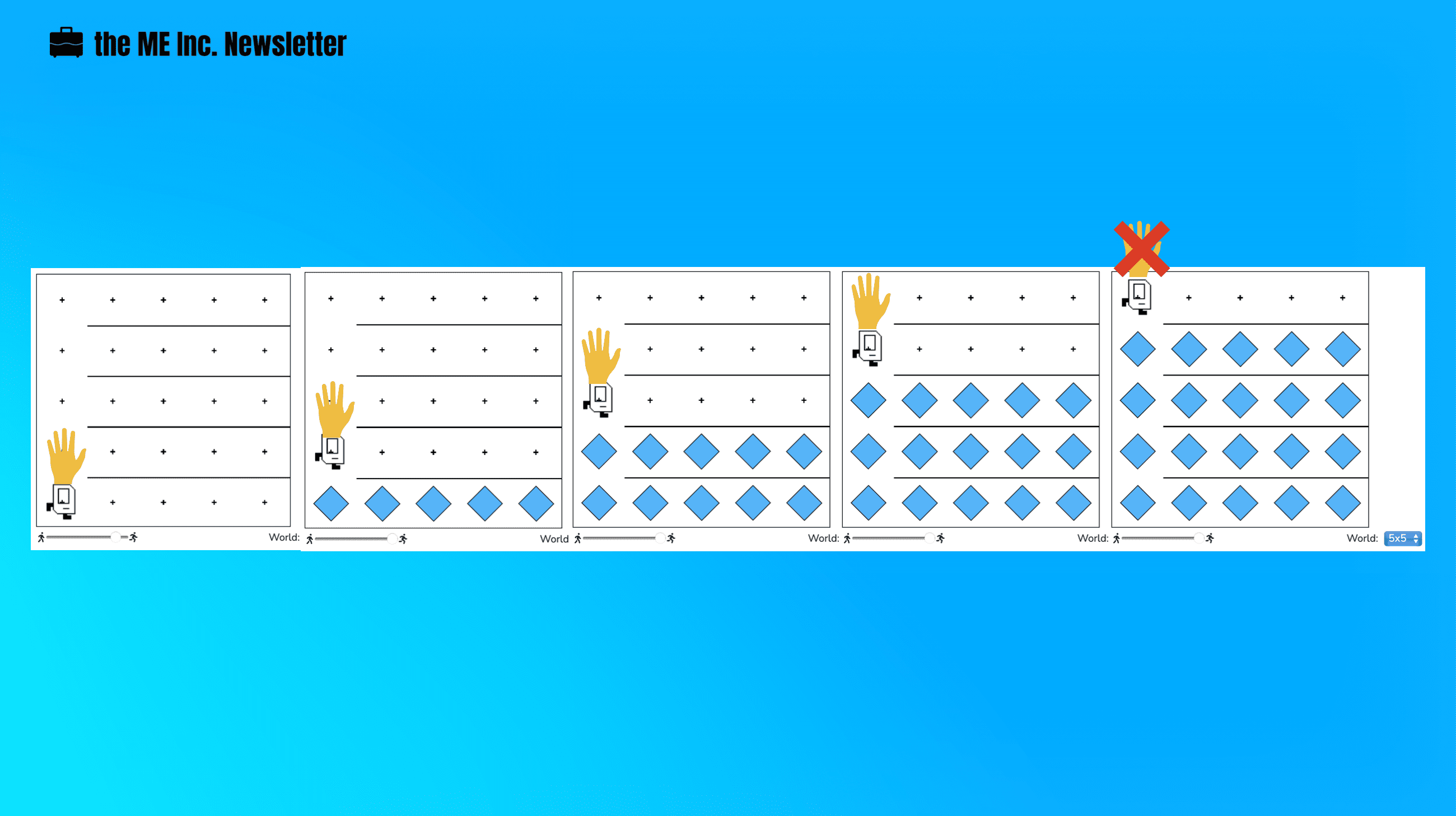
    For every row other the last one, Karel will return to the first spot after laying down all the beepers, which means Karel “knows” when she is in the last row.

    How is it possible that Karel knows this?

    Well, we need to find some quality that only the last row has, differentiating it from the rest of rows. 

    Every time Karel starts from the first spot, ready to put down beepers for a certain row, her left is clear other than when she is in the last row. It will be easier if you try visualize like Karel is reaching out with her left hand, and only when she is in the last row that her left is NOT clear.

    Writing the Code

    1. Finish One Row

    Recall that to finish one row, Karel will need to do three things:

    1. puts beepers on every spot in that row
    2. turns around, and
    3. moves all the way back to the wall
    def finish_one_row():
        laying_tiles()
        turn_around()
        move_to_wall()

    We will keep breaking down each of these three functions:

    def laying_tiles():
        put_beeper()
        while front_is_clear():
            move()
            put_beeper()
    
    def turn_around():
        turn_left()
        turn_left()
    
    def move_to_wall():
        while front_is_clear():
            move()

    2. Move to the Next Row

    def move_to_next_row():
        turn_right()
        move()
        turn_right()
    
    def turn_right():
        for i in range(3):
            turn_left()

    By this point, we are ready to write the whole thing. Remember that while Karel’s left is clear, she should keep finishing one row at a time and move to the next row, and when it’s not clear, she should simply lay down the tiles and call it a day.

    def main():
        while left_is_clear():
            finish_one_row()
            move_to_next_row()
        laying_tiles()
        
    def finish_one_row():
        laying_tiles()
        turn_around()
        move_to_wall()
    
    def turn_around():
        turn_left()
        turn_left()
    
    def move_to_wall():
        while front_is_clear():
            move()
    
    def laying_tiles():
        put_beeper()
        while front_is_clear():
            move()
            put_beeper()
        
    def move_to_next_row():
        turn_right()
        move()
        turn_right()
    
    def turn_right():
        for i in range(3):
            turn_left()
    
    # There is no need to edit code beyond this point
    if __name__ == '__main__':
        main()

    The main function is simple, easy-to-read, and elegant. This is the beauty of decomposition. And by finding the unique quality of the stop condition, we manage to construct a universal solution with the while loop.

  • Spread Beepers Solution

    Spread Beepers Solution

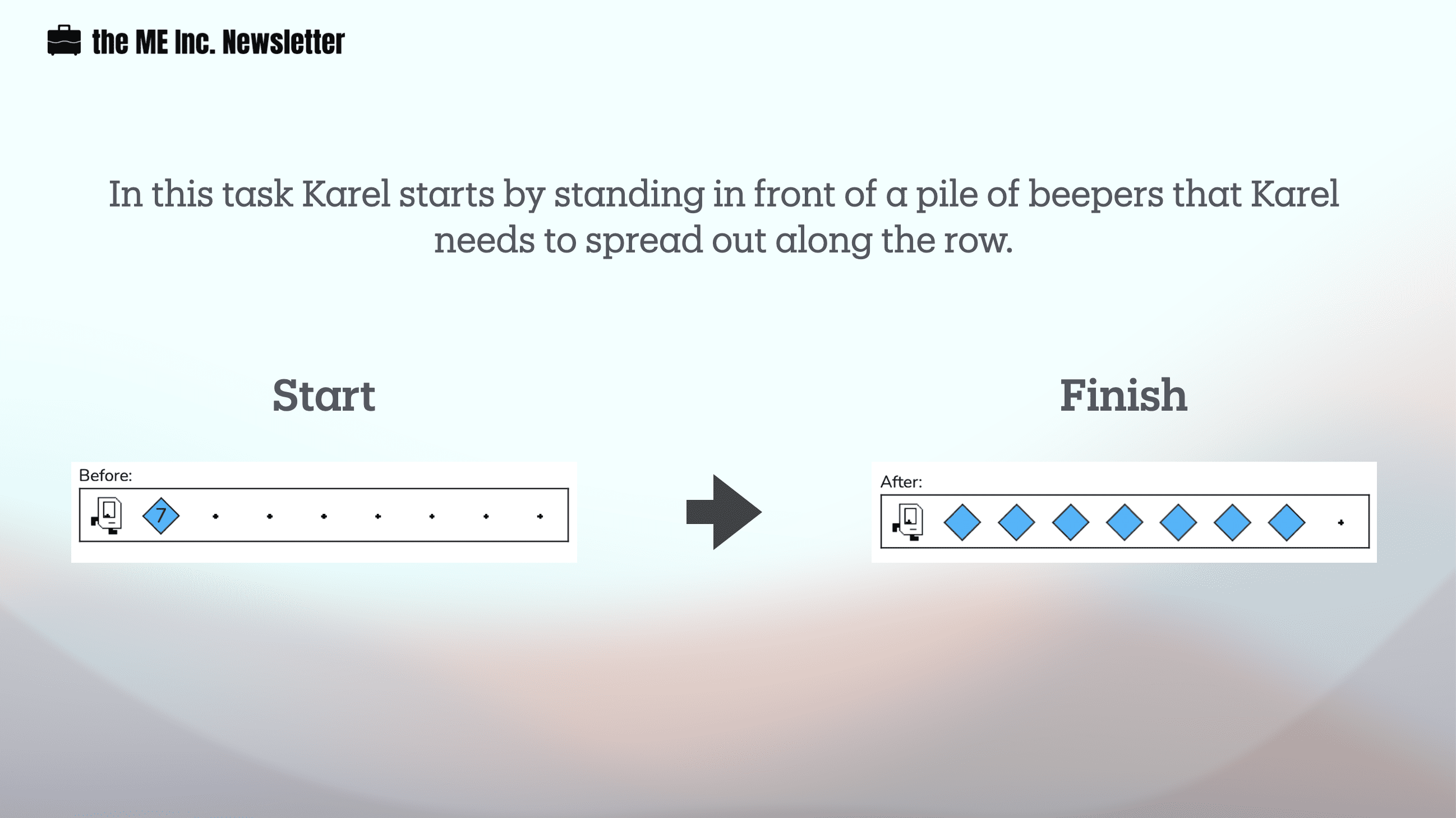
    Spread beepers is an interesting problem. While it’s easy for a human eye to solve the problem, it actually takes a bit of decomposing skills for Karel to finish the job.

    Karel has the ability to find out whether there are beepers present, but she cannot know how many left. In other words, Karel doesn’t count

    The Thinking

    Since the pile of beepers is always on the second corner, Karel should move just once to the beepers location. After that, Karel can start doing her work. Since Karel already possesses infinite numbers of beepers in her bag, and Karel doesn’t know how to count, she cannot pick up all the beepers at once. Instead, Karel should pick up a beeper, go to the next empty location, put down the beeper, and return to the starting corner, facing east. 

    One of the most difficult issue with this problem is that since Karel doesn’t know how to count, she will keep picking up beeper even when there is only one left. Our solution to this issue is to put the beeper back if Karel incorrectly picks up the last beeper from the second corner. To accomplish this, we will have to put in an additional layer of condition.

    def spread():
        while beepers_present():
            pick_beeper() # karel can only pick 
            if beepers_present():
                move_to_next()
                put_beeper()
                move_to_start()
                move()
        put_beeper()
    
    def turn_back():
        turn_left()
        turn_left()
    
    def move_to_start():
        turn_back()
        while front_is_clear():
            move()
        turn_back()
        
    def move_to_next():
        while beepers_present():
            move()

    The while loop and the if loop together helps Karel understand when she needs to stop picking up beepers. If you understand this, the solution become natural.

    The Coding

    from karel.stanfordkarel import *
    
    # let it go to starting point at the end
    
    ## helper function
    
    ## 1 turn back 
    
    def turn_back():
        turn_left()
        turn_left()
    
    ## 2 move to the start
    def move_to_start():
        turn_back()
        while front_is_clear():
            move()
        turn_back()
        
    ## 3 move to next
    def move_to_next():
        while beepers_present():
            move()
    
    ## 4 work function find and spread beeper
    def spread():
        while beepers_present():
            pick_beeper() # karel can only pick 
            if beepers_present():
                move_to_next()
                put_beeper()
                move_to_start()
                move()
        put_beeper()
    
    ## Main 
    def main():
        move()
        spread()
        move_to_start()
    
    # There is no need to edit code beyond this point
    if __name__ == '__main__':
        main()